
Introduction
Logging In, Registration & Account Setup
Uploaded by: Marcus Wong · Last updated: June 8, 2026
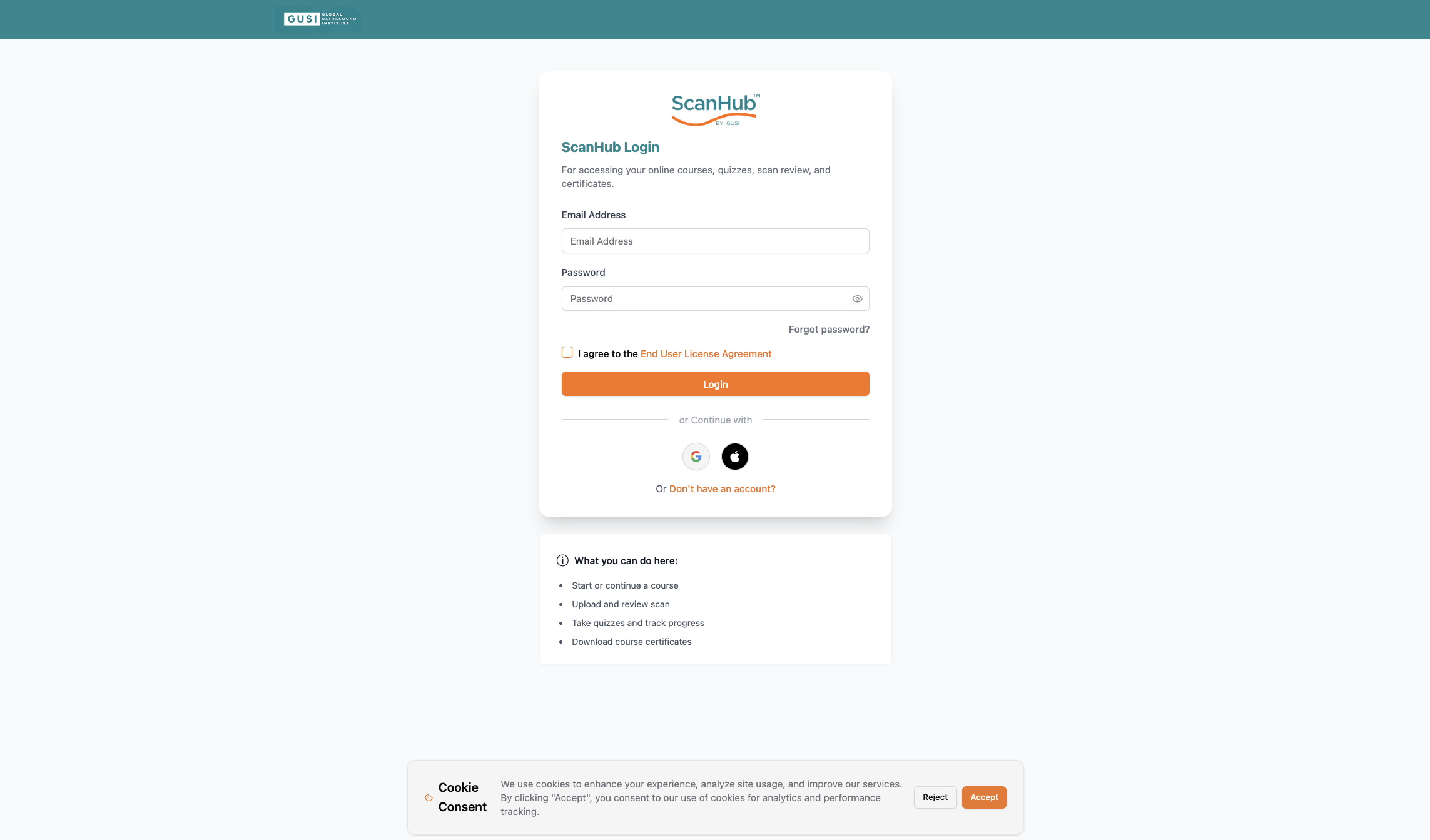
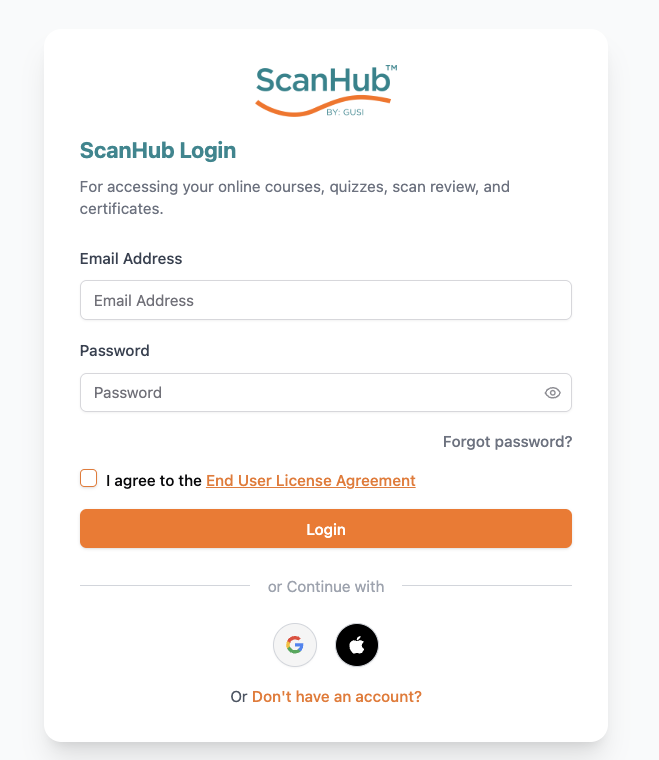
Logging In
Enter your valid username or email and password, then tap Login.
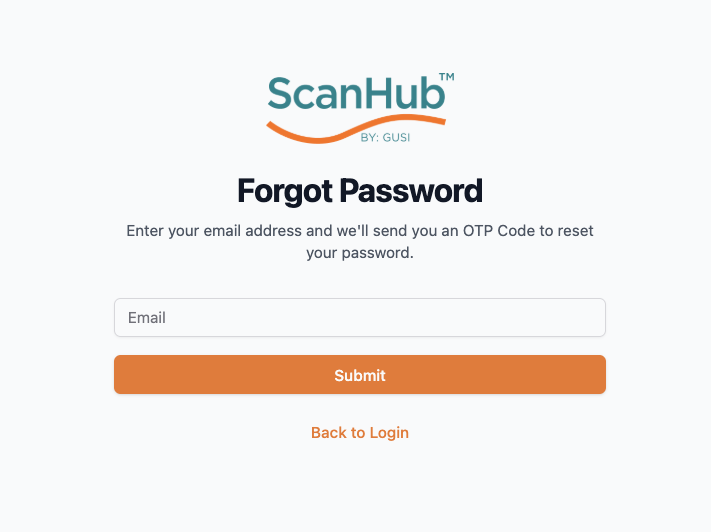
Forgot Your Password?
- Tap Forgot Password and enter your registered email address.
- You’ll receive an OTP in your email. If you don’t see it, check your spam folder.
- On the OTP Verification screen, enter the OTP.
- Once verified, you’ll be taken to the Reset Password screen where you can create a new password.
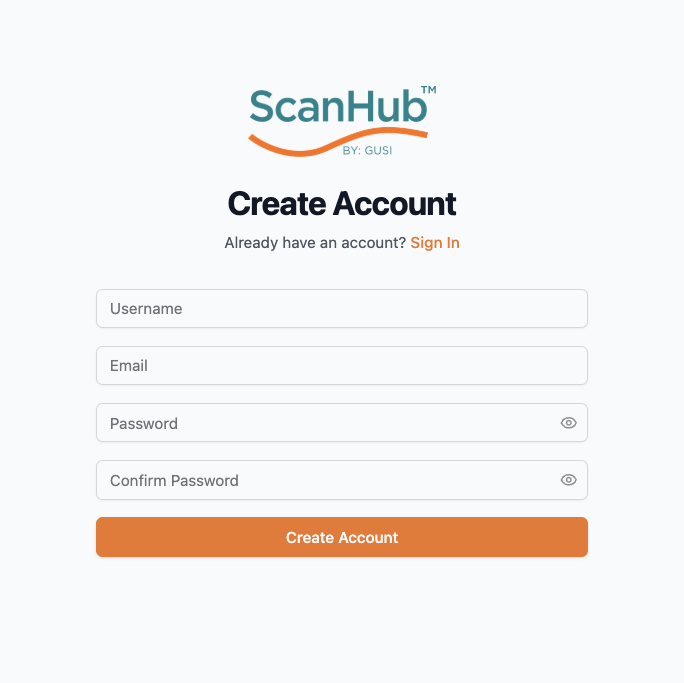
New User Registration
- Tap Register and enter your username, email, password, and promo code (if you have one).
- Tap Sign Up to continue.
- You’ll receive an OTP in your email to complete your registration.
Getting Started Checklist
- Complete your profile in the Settings section
- Set notification preferences to stay informed
- Configure your timezone and language settings
- Explore the Dashboard to familiarize yourself with the interface
- Browse available courses in the My Courses section
- Review the Pathology Gallery to understand available resources
- Test the Scan Vault by uploading a sample image
- Connect with your mentor or group leader if enrolled in a fellowship
Related Articles
ScanHub Quick-Start Guide
Navigation & the Top Bar
Quick Reference
Support & Resources
Settings, Profile & Logging Out
Sage AI Assistant
Using Your Dashboard
Logging In, Registration & Account Setup
Need more help?
If you require further assistance or discovered an error in our support documentation, please contact us by emailing support@globalultrasoundinstitute.com