
Five short tasks to get you productive in ScanHub on day one.
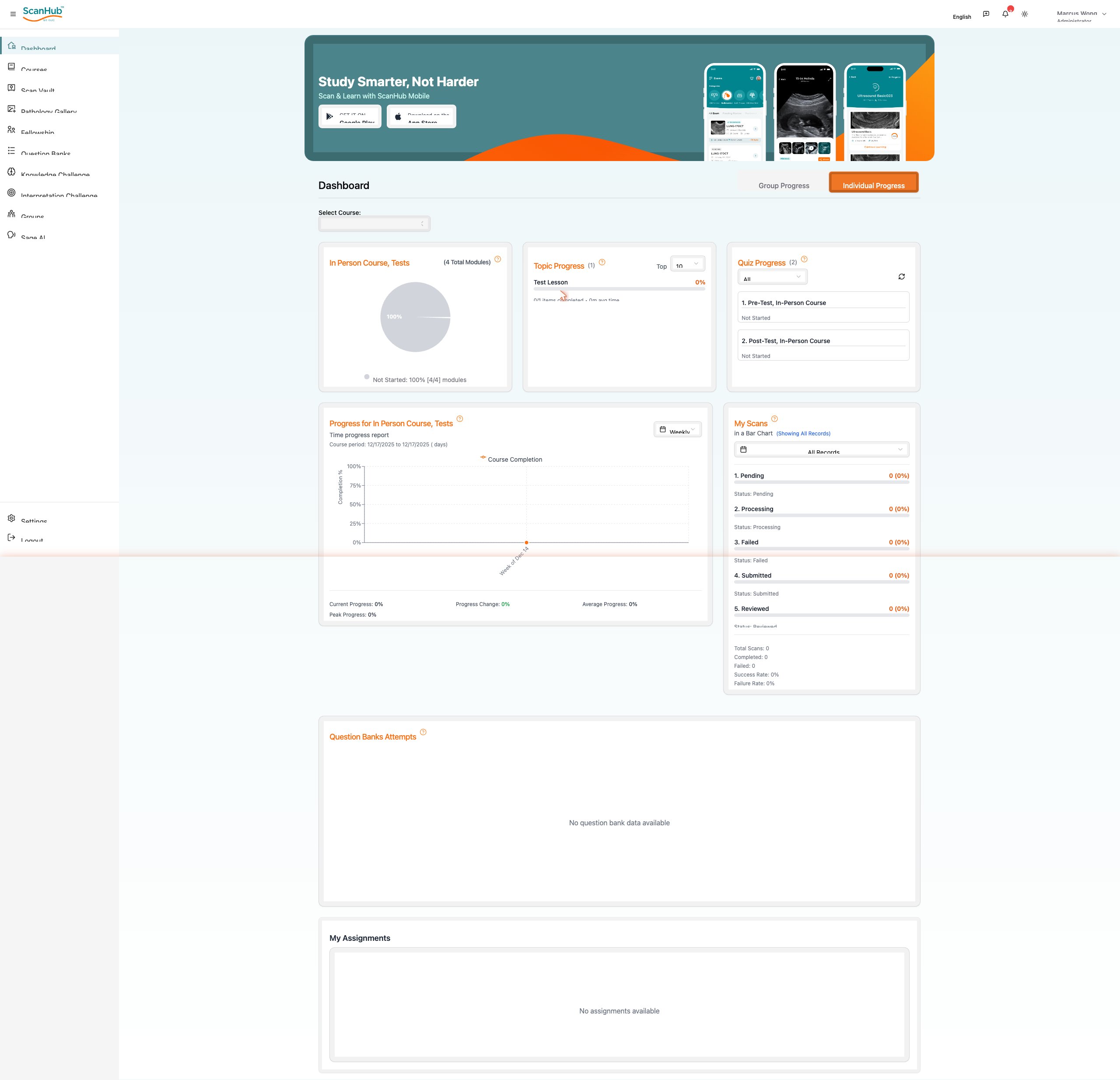
1. Sign in and read your Dashboard
- Open your browser and go to scanhub.upscan.com.
- Sign in with the email and password provided by your organization. ScanHub opens on the Dashboard.
- Use the left navigation rail to move between areas. Use the toggle in the top-right of the Dashboard to switch between Individual Progress and Group Progress.
The Dashboard summarizes your learning and scanning activity: course and topic completion, quiz results, a progress-over-time chart, your scan pipeline (Pending, Processing, Failed, Submitted, Reviewed), question-bank attempts and any assignments.
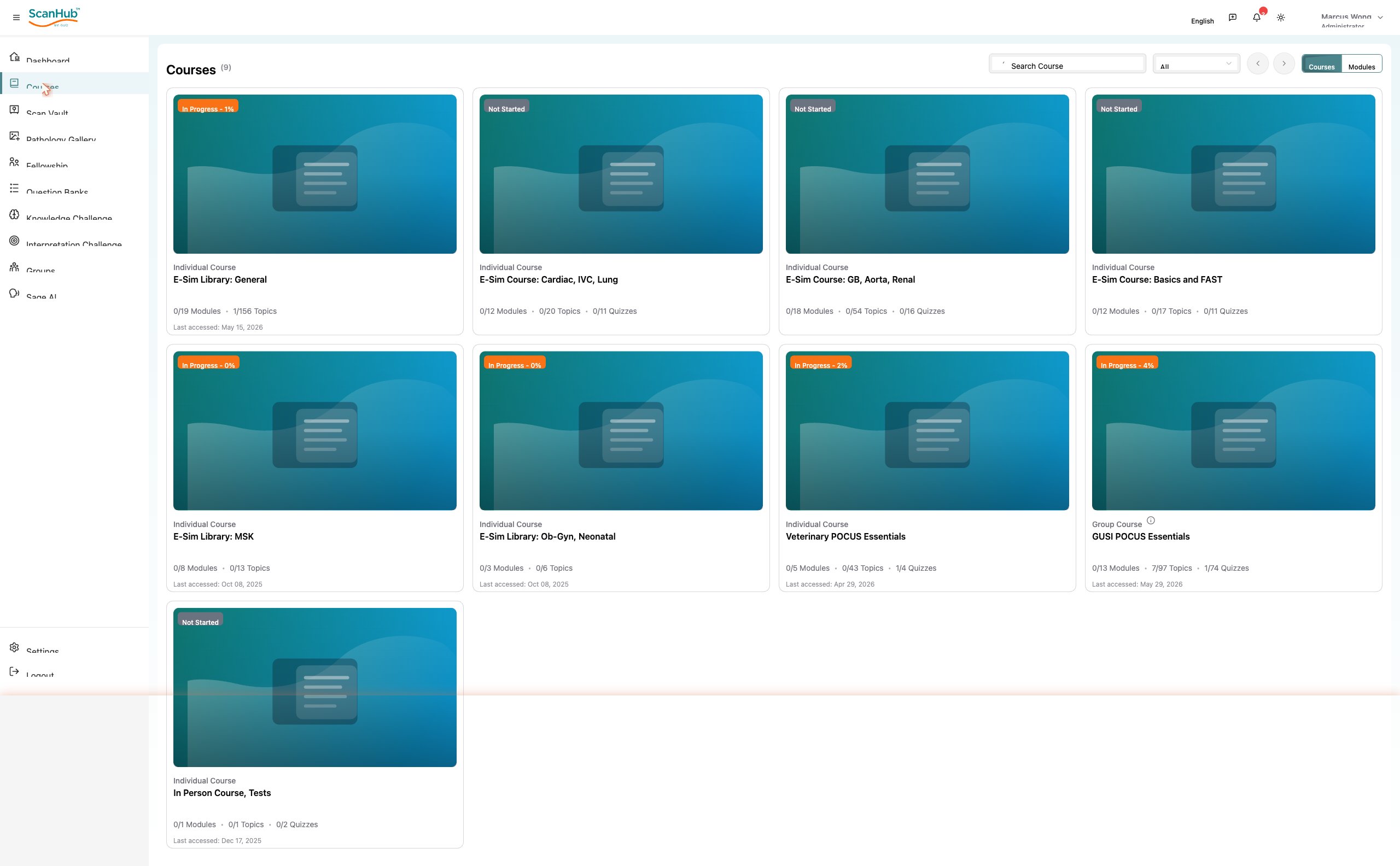
2. Take a course
- Click Courses in the navigation rail to see the courses available to you.
- Click a course card to open its overview, then click Resume Course or pick a module.
- Open a module to start its first lesson. Lessons play in the main panel; the full course outline sits on the right so you can jump between topics.
- Work through the topics in order. Your progress saves automatically (look for the “Saved” indicator) and completed topics are checked off in the outline.
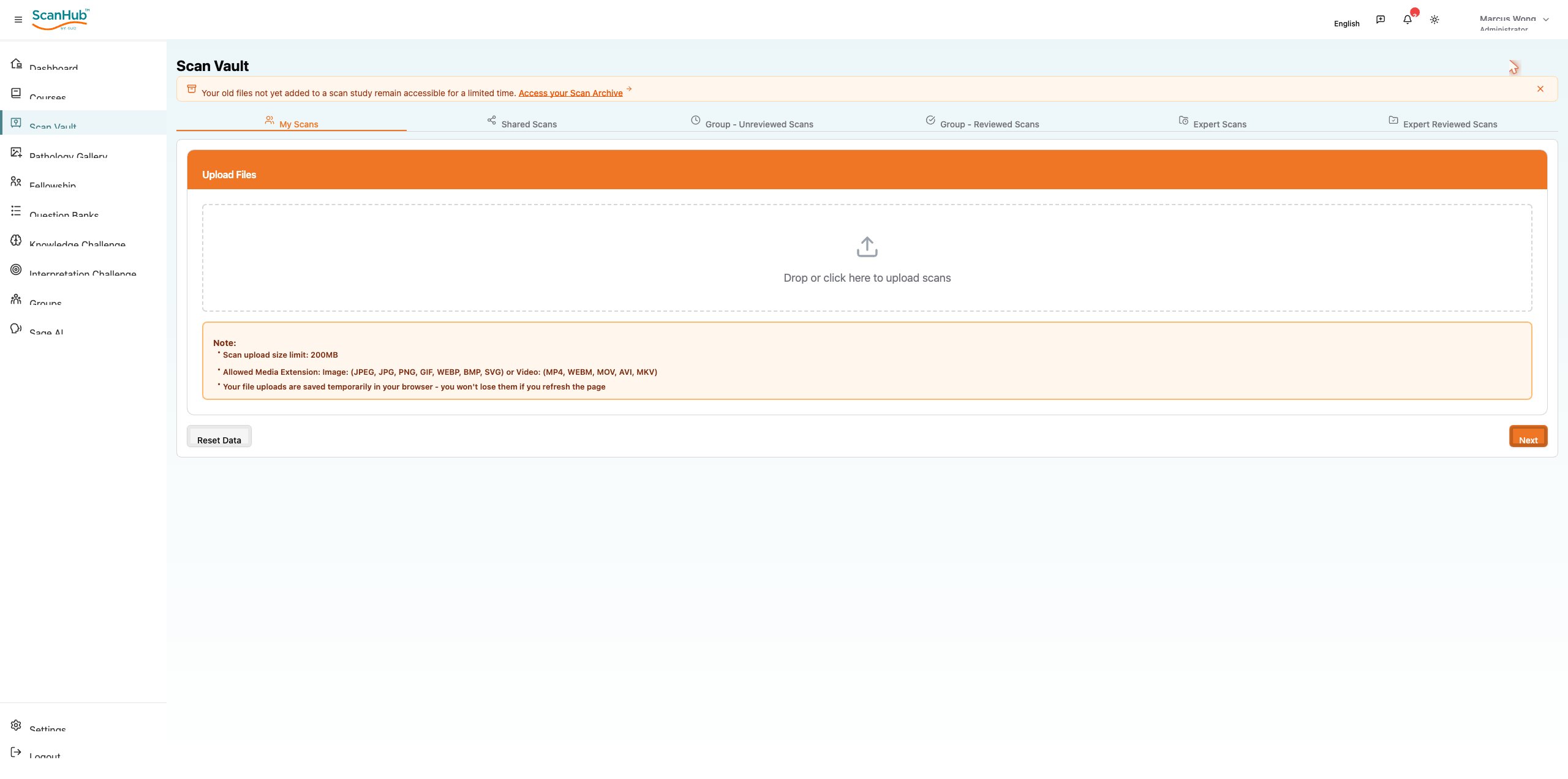
3. Upload a scan to the Scan Vault
- Click Scan Vault, then click Create Scan Study in the top-right.
- Drag your scan files onto the upload area, or click it to browse. Images (JPEG, PNG, GIF, WEBP, BMP, SVG) and video (MP4, WEBM, MOV, AVI, MKV) are accepted, up to 200 MB.
- Click Next and complete the study details, then submit. Your scan moves through the review pipeline and appears under My Scans with a status.
Good to know
- Uploads are held temporarily in your browser, so they survive a page refresh — but submit the study to store them permanently.
- Track each scan’s status on the Dashboard: Pending → Processing → Submitted → Reviewed (or Failed).
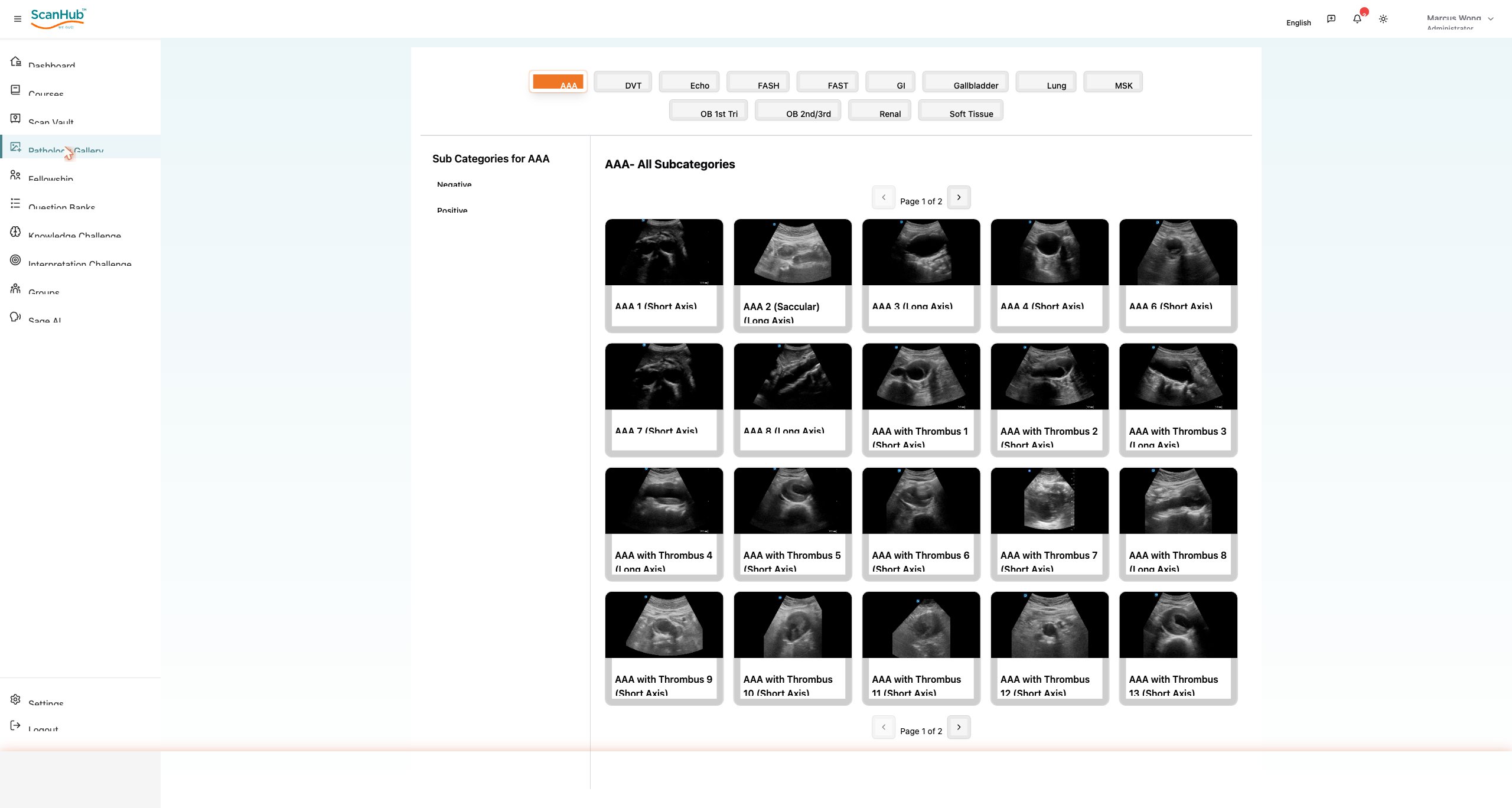
4. Browse the Pathology Gallery
- Click Pathology Gallery.
- Choose a body system from the chips along the top (AAA, Echo, FAST, Lung, Renal, OB and more).
- Narrow the list using the Negative / Positive sub-categories on the left, then click any thumbnail to open the clip.
- In the viewer, play the clip and use the heart icon to save a case or the share icon to send it.
5. Practice and ask Sage AI
Reinforce what you have learned, then get answers on demand:
- Question Banks — pick a topic bank and click Start Quiz for timed, multiple-choice practice.
- Knowledge Challenge — choose a course, question type and category for course-linked questions.
- Interpretation Challenge — choose an exam type and challenge type to practice reading scans.
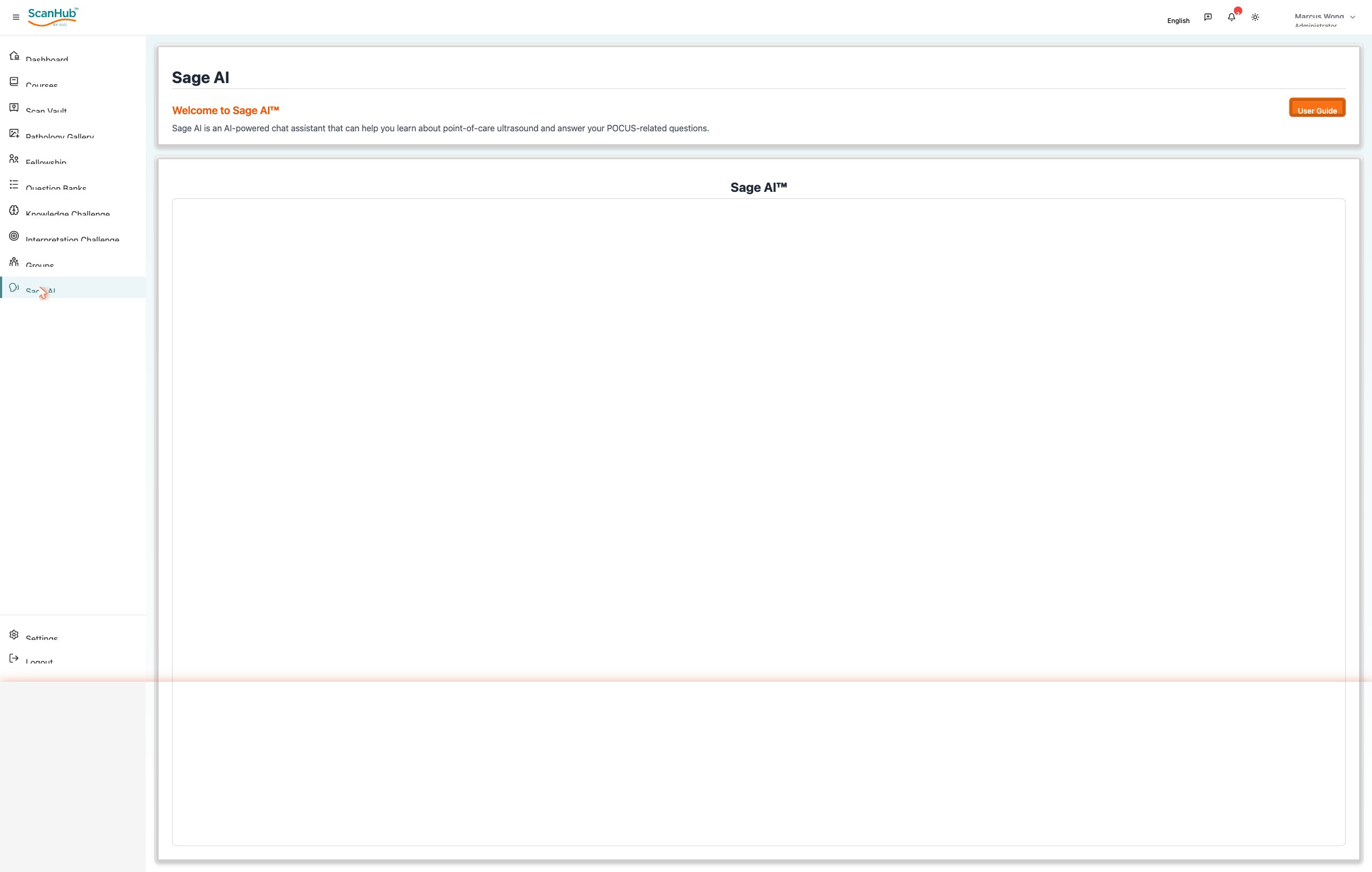
- Sage AI — type a POCUS question into the chat; answers cite the relevant GUSI courses.
That is everything you need to start. Part II documents every screen in detail.
Related Articles
ScanHub Quick-Start Guide
Navigation & the Top Bar
Quick Reference
Support & Resources
Settings, Profile & Logging Out
Sage AI Assistant
Using Your Dashboard
Logging In, Registration & Account Setup
Need more help?
If you require further assistance or discovered an error in our support documentation, please contact us by emailing support@globalultrasoundinstitute.com