
Creating a new scan lets you upload medical imaging files (ultrasound, CT, or other types) for documentation, review, learning, or remote consultation. Watch the companion videos: Scan Upload and Review Tutorial · Scan Upload and Review (dubbed) .
Create a New Scan (3 Steps)
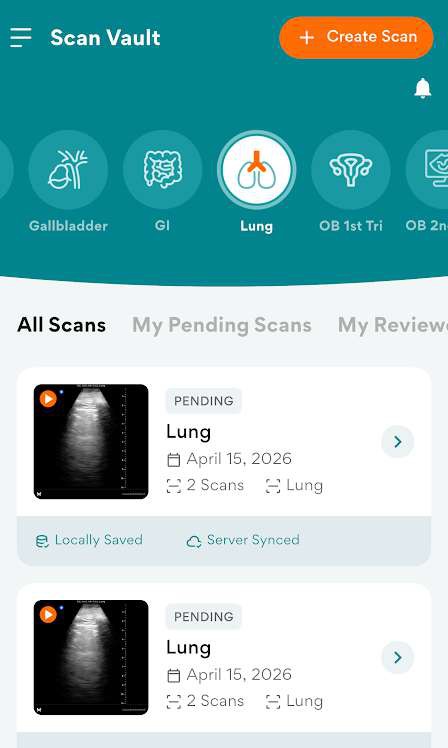
Step 1 – Tap Create Scan. Open the ScanHub app, log in with your GUSI credentials, navigate
to My Scans, then tap + Create Scan in the upper right corner.
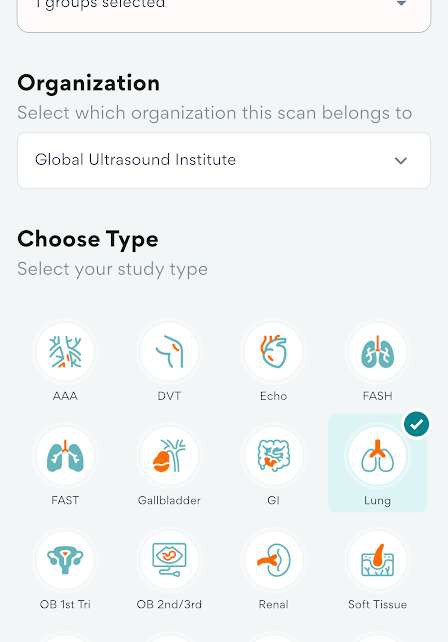
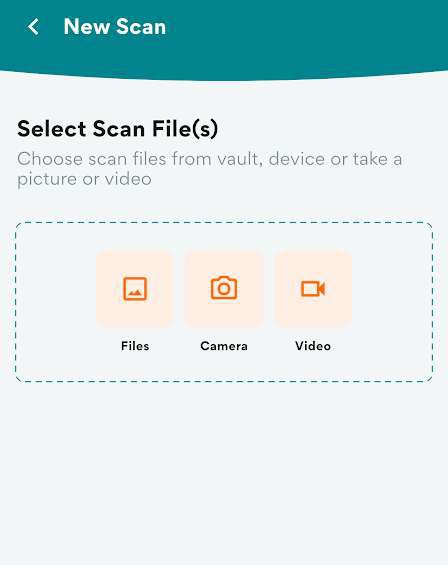
Step 2 – Choose a source and study type. Tap any option to upload a scan — select from
ScanVault, Gallery (Photos), Camera, or Video, then choose the study type. Tap Next when done.
Step 3 – Select findings. Select the appropriate findings. Optionally enter a scan identifier and
notes. Tap Next, then Submit. A notification will track the upload progress.
Adding Clips & Stills
- Tap ScanVault, Photos, Camera, or Video to select your ultrasound images or clips
- Keep each clip 3–6 seconds — no longer — for smoother playback and faster mentor review
Labeling & Organizing
- Scan type: e.g., FAST, Echo, DVT, OB 1st Trimester
- Views obtained: e.g., PLAX, A4C, short, long, CBD
- Relevant findings: e.g., decreased EF, pericardial effusion, gallstones
- Comments/questions for your reviewer: “Is this RV enlargement?” · “Does this compression look adequate?”
- De-identification: ensure all files are de-identified before submission (ScanHub automatically removes PHI when files are imported via the GUSI workflow)
Submitting & Tracking
- Once all clips and stills are labeled, tap Submit Exam (or Sync / Upload).
- Confirm the upload reaches 100% — the label “server synced” means it succeeded.
- On poor connections, the app stores the upload and automatically retries when the connection is restored.
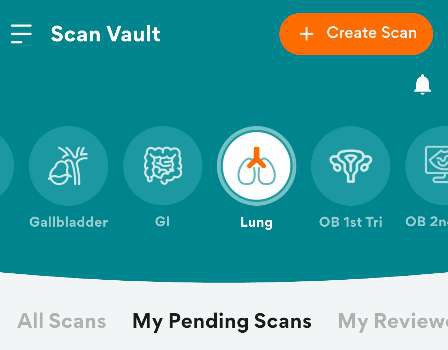
- Pending Scans tab: submitted studies are tagged pending until reviewed
- Reviewed Scans tab: scans that have already been reviewed
Reviewing Mentor Feedback
- Open the app → My Scans → My Reviewed Scans.
- Tap the exam to view mentor notes.
- Compare your next scans with the feedback and re-upload improved versions.
Mobile Tips & Cautions
- Use Wi-Fi for uploading cine loops; cellular uploads may fail if >50 MB
- Upload both normal and abnormal scans for practice
- Check that each clip plays correctly before hitting Submit
- If you cannot upload via the app, use the web portal (Part 4)
Related Articles
Ultrasound Machine Capture & Export Tips
Scan Quality Best Practices
Uploading Scans: Web Portal
Uploading Scans: Mobile App
Scan Vault: Storing & Managing Scans
Need more help?
If you require further assistance or discovered an error in our support documentation, please contact us by emailing support@globalultrasoundinstitute.com